Trending

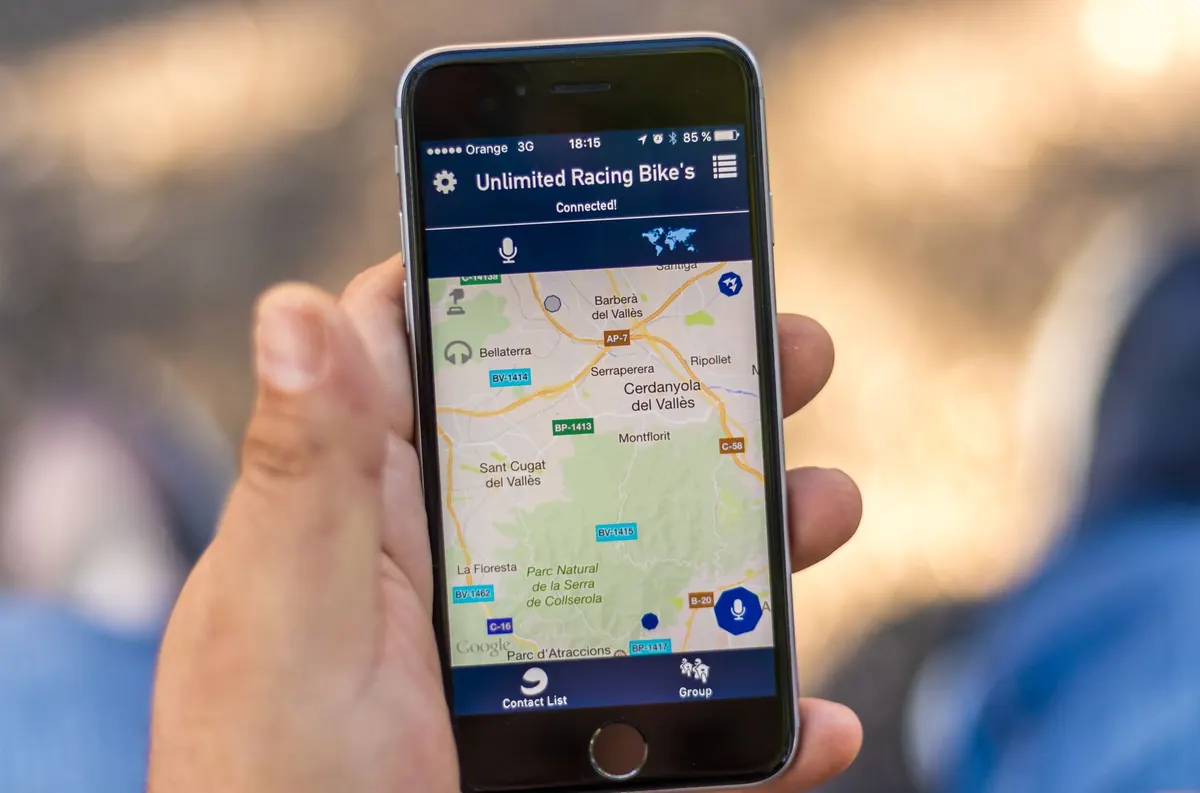
You switch the phone back on at the arrival gate and it buzzes within a minute: a message from your operator about data charges in the country you've just landed in. Sometimes it's a friendly nudge; on other plans it's the opening line of a bill you'll wince at later. Meanwhile the car rental queue is long, the paper map is a creased afterthought, and you still need to find a car park, a supermarket and the road out of the airport.
Offline maps solve most of that. They cost nothing extra, they keep working where the signal doesn't, and setting them up takes about ten minutes at home, on your own wifi, with a cup of tea within reach. Here's how to do it properly.
When you download an offline map, your phone stores a chunk of map data: roads, place names, coastline, often footpaths, sometimes business listings and opening hours. Navigation then happens on the device itself, using GPS signals that arrive free from satellites. That's the part people miss. Your phone doesn't need a mobile network to know where it is; it needs a clear view of the sky and a map already stored on board.
What you give up is the live layer: current traffic conditions, real-time bus and train departures, prices, the newest restaurant that opened last month. For a walk across a city, a drive between two towns, or a hike on a marked trail, that's a trade worth making. For a tight connection at a big station, it helps to have a little data available as well.
You don't need five apps. One general map plus, if you're hiking, one trail-focused app is plenty.
If your trip crosses several countries, download each one separately. A drive from Vienna to Ljubljana to Trieste is three downloads, not one.
A map is only as useful as the points you've marked on it. Before you leave, pin your accommodation, the nearest station or ferry dock, the airport, the car park you booked, and one or two anchor points in each neighbourhood you plan to wander. Saved lists are ideal here — one for food, one for sights, one for practical stops — because a star-covered map gets confusing fast.
Two habits worth adopting. First, save the address as text as well as a pin. A pin won't help a taxi driver, and it won't help a receptionist understand where you're trying to go. Copy the address in the local language and script, especially for Japan, Greece, Georgia or anywhere the Latin transliteration differs from the street sign. Second, add a note to each saved place: "cash only", "closed Mondays", "entrance round the back". Your future self, standing on a pavement at 8pm, will be grateful.
In the hotel lobby, before you head out, switch the phone to airplane mode and open the map. Location services still work in airplane mode on most phones, and GPS is receive-only, so you're not paying for anything. If the blue dot appears and follows you as you walk to the door, you're set for the day. If it doesn't, sort it out now rather than at a crossroads.
A few things to know. Without a data connection to help, the first GPS fix can take longer; step outside, hold still for half a minute, and let it settle. Offline routing is excellent in dedicated offline apps and more limited in general consumer maps, where some transport modes may not calculate without a connection — test an actual route the night before rather than discovering the limitation in a hurry. And keep the screen brightness down and the phone in your pocket between turns, because a map app with the screen lit will drain a battery faster than you expect. A small power bank earns its place in the day bag.
Treat the downloaded map as the plan and the data connection as the backup. It's the opposite of how most of us travel, and it's the arrangement that never leaves you stranded.
Sometimes live information genuinely helps: a delayed train, a bus that stopped running, a restaurant that closed early. That's the moment to switch data on briefly, check, and switch it off again. If you'd rather stay reachable without worry, a local prepaid SIM or a travel eSIM is usually cheaper than roaming — compare what your own operator charges first, and read the small print on fair-use limits before you buy.
Whatever you choose, these settings keep the background noise from eating your allowance:
The night before you fly, run through this once. Download every region on your route over wifi. Pin your first night's accommodation and the nearest station to it. Save one offline map of the airport area — arrivals, car rental, the road out — because that's where tired travellers make mistakes. Test a walking route in airplane mode. Charge the power bank. Then put the phone down and pack.
Do that, and the buzz at the arrival gate becomes a message you can ignore. The map is already in your pocket, the blue dot knows where you are, and the only thing left to figure out is where to find a decent coffee.
Photo: George Sultan / Pexels